
On an iPhone: Tap and hold on the home screen until the icons wiggle, then drag them around to rearrange or tap the X to uninstall them.
Add Shortcuts for Useful Tasks or Apps
One of the best things you can do is place shortcuts on the home screen to make it easier for them to call or message their closest contacts with a single tap.
On an Android phone: Tap and hold on the home screen and select Widgets, choose the Browse tab, then scroll down to Contacts, choose Direct dial, and select a contact. You can place the shortcut anywhere on the home screen, and they can call that person simply by tapping it. You can add Direct message shortcuts in the same way.
On an iPhone: Use the Shortcuts app. If you create a folder for the home screen, you can potentially add multiple shortcuts. You can tap the plus (+) icon at the top right to add a new shortcut, search for or scroll down to Phone or FaceTime, tap on it again, then tap Contact and pick the contact you want to add. Tap at the top and choose Rename to give the shortcut a name, choose the icon, and Add to Home Screen. You can also tap and hold on the home screen until the icons wiggle and tap Edit at the top left, then Add Widget, and choose Contacts, then select the contact you want to add, but this will require an extra tap when they want to call.
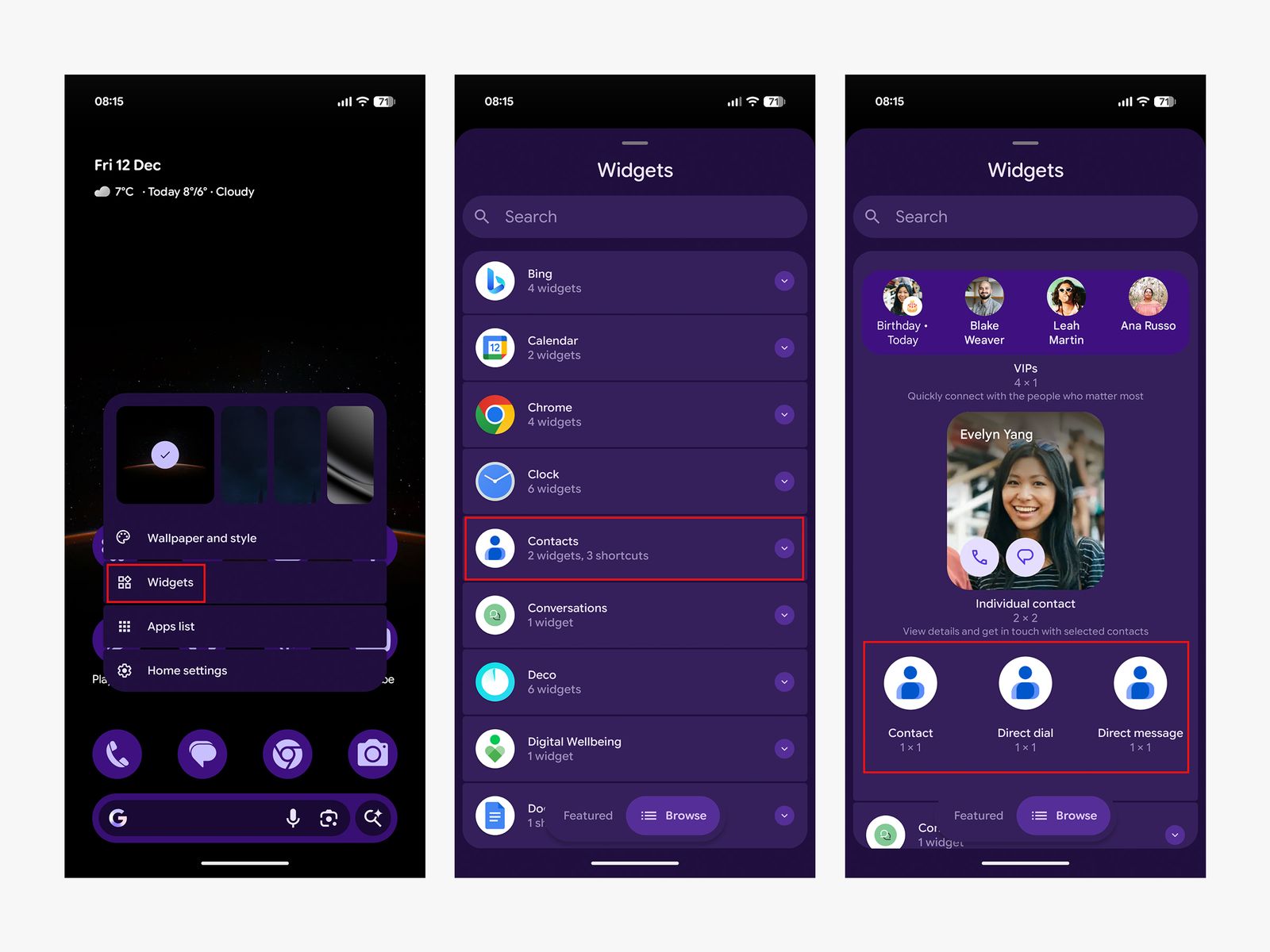
Call contact shortcut on Android
Screenshots: Simon Hill
Consider a Simple Launcher (Android Only)
With Android phones, you can change the “launcher,” which determines the look of the whole interface, including things like app icons and font size.
Samsung phones have an alternative launcher called Easy Mode built in. To toggle it on, go to Settings, Display, and choose Easy Mode. There are loads of alternative Android launchers that you can install, and several simplify the phone experience with big icons. Simple Launcher, Big Launcher, or Senior Home are all worth a look.
Increase the Font Size
To make the font more readable, you can increase its size. There are loads of other handy smartphone features for folks with vision loss.
On an Android phone: Go to Settings, Display and touch, and choose Display size and text, then drag the slider to adjust. You can also get there via Settings, Accessibility, then Display size and text.
